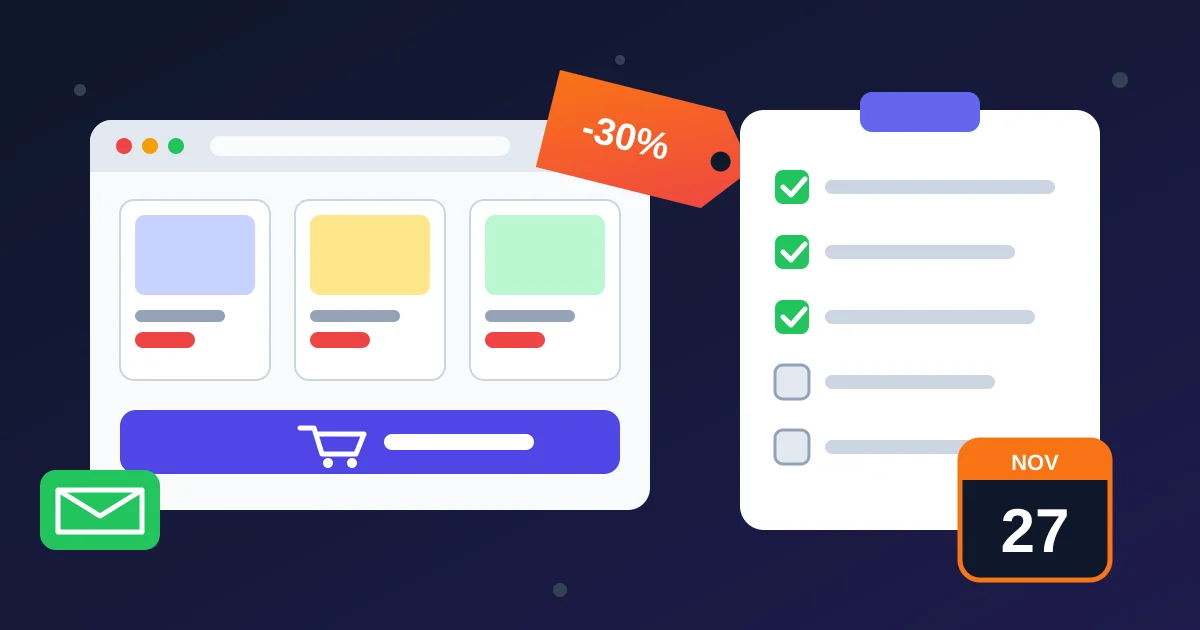
This WooCommerce Black Friday checklist walks you through everything to prepare before the biggest shopping weekend of the year. In 2026, Black Friday falls on Friday, November 27 and Cyber Monday on Monday, November 30. That leaves a few weeks to get your store ready, and most of the work is simple if you start now instead of the night before.
Below are 12 practical steps for small WooCommerce stores, whether you sell physical products, digital downloads or software licences. Each step says what to do, why it matters and how to save time with automation.
Your WooCommerce Black Friday Timeline
- 3–4 weeks before (early November): back up the site, update plugins, test checkout, plan your offers.
- 2 weeks before: build sale prices and coupons, write emails, prepare banners and a sale landing page.
- 1 week before: schedule everything, warm up your email list with an “early access” message, clear the cache and run a final test order.
- Black Friday to Cyber Monday: watch orders and stock, answer questions fast, send reminder emails.
- The week after: follow up with buyers, recover abandoned carts and review what worked.
Step 1: Take a Full Backup and Update Safely
Before you change anything, take a full backup of files and database with your backup plugin and download a copy. Then update WordPress, WooCommerce, your theme and plugins at least two weeks before the sale, not on the day. That gives you time to spot a broken checkout or layout. After the updates, freeze big changes until the sale is over.
If you want a repeatable routine, our weekly WordPress maintenance checklist covers updates, spam and health checks you can run in a few minutes.
Step 2: Test Every Payment Method with a Real Order
The most expensive Black Friday problem is a checkout that silently fails. Place a real low-value test order with each payment method you offer, on desktop and on mobile, then refund it. Check that:
- the payment completes and the order moves to the right status,
- the customer receives the order email (check spam folders too),
- digital downloads or licence keys are delivered automatically,
- the order shows the correct tax and currency.
Also ask yourself whether your buyers can actually pay. If many of your visitors are in one country, offer the methods they use every day there, such as cards, local wallets or bank transfer, not only one international option. A shopper who cannot find a familiar payment method usually leaves.
Step 3: Speed Up Your Store Before Traffic Arrives
Black Friday shoppers compare stores quickly, and a slow product page loses them. Quick wins for WooCommerce:
- Turn on page caching, but exclude cart, checkout and my-account pages.
- Compress product images and use WebP where your theme supports it.
- Deactivate plugins you no longer use.
- Ask your host whether your plan can handle a traffic spike, and upgrade temporarily if needed.
Step 4: Plan an Offer People Understand in Two Seconds
Simple offers sell better than clever ones. Pick one main deal and make it obvious:
- Percentage off everything (for example 30% off sitewide) – easy to understand.
- Bundle deals – two related products for a lower combined price.
- Tiered discounts – spend more, save more, which raises your average order value.
- Bonus instead of discount – a free extra licence, template or setup call for premium products.
Check your margins first. A discount that leaves no profit after payment fees is not a deal for you.
Step 5: Schedule Sale Prices Instead of Editing on the Night
WooCommerce lets you set a sale price with start and end dates on each product, so prices change automatically at midnight and switch back after Cyber Monday. For many products, use bulk editing or a CSV import rather than opening each one. Our guide on how to bulk edit WooCommerce products compares four safe methods.
You can also do it by chat. With Site Commander MCP, you can ask Claude something like “set a 30% sale price on every product in the Software category from November 27 to November 30” and approve the change, instead of clicking through dozens of product screens.
Step 6: Create Coupons with Clear Limits
If you use coupon codes, set them up properly so they cannot be abused:
- add an expiry date (for example the end of Cyber Monday),
- set a usage limit per customer,
- decide whether the coupon can combine with sale prices (“individual use only”),
- review your old coupons and disable any large or 100% discount codes you no longer need.
Old test coupons with big discounts and no limits are a common leak. If one gets shared on a deal forum during Black Friday, you can give away products for free.
Step 7: Set Up Abandoned Cart Recovery
Many shoppers add products to the cart while comparing deals, then leave. A short reminder sequence brings a share of them back:
- about 1 hour later: a friendly reminder with a link back to the cart,
- the next day: answer common doubts (delivery, refunds, support),
- before the sale ends: a “last chance” message.
See 7 ways to win back abandoned carts for message ideas. WooFlow Manager adds abandoned cart recovery, order control, invoices and licence-key delivery to WooCommerce for a one-time payment, so the reminders run without you.
Step 8: Build a Simple Black Friday Landing Page
Create one page that lists every deal, with the end date clearly visible. Link to it from your homepage banner, menu and emails. Publish it early with an “Opens November 27” message, so search engines can find it and visitors can bookmark it. Re-use the same URL every year so it builds up links over time.
Step 9: Prepare Your Emails and Social Posts in Advance
Write every message before the sale starts: an early-access teaser, a launch email, a “halfway” reminder, a Cyber Monday email and a final “ends tonight” message. Schedule social posts for the same moments. Our list of 9 WooCommerce marketing automation workflows shows how to keep these running on autopilot after the sale too.
Step 10: Check Stock and Delivery Promises
For physical products, check stock levels and set low-stock alerts so you do not sell items you cannot ship. Update delivery times on product pages if your courier will be busy. For digital products, confirm that download links and licence keys are ready and that you have enough keys in stock. Our WooCommerce inventory management guide covers stock settings in detail.
Step 11: Automate Order Processing
More orders means more manual work: status changes, invoices, tracking emails and licence delivery. Automate as much as you can before the rush. Our WooCommerce order automation guide walks through 7 steps from checkout to delivery.
Step 12: Watch, Answer and Follow Up
During the sale, check orders, failed payments and support messages several times a day. Fast answers to “does this work with my setup?” turn into sales. After Cyber Monday, thank your buyers, ask for a review and look at your sales report: which products sold, which coupon was used most, and how many carts were recovered. Write it down so next year is easier.
If you manage your store with Claude, Site Commander MCP can pull a sales report for any date range, list processing orders and show low-stock products by chat, which makes these daily checks quick.
Printable WooCommerce Black Friday Checklist
- ☐ Full backup taken and downloaded
- ☐ WordPress, WooCommerce, theme and plugins updated 2+ weeks before
- ☐ Test order placed with every payment method, on mobile and desktop
- ☐ Caching on, with cart and checkout excluded
- ☐ One clear main offer, margins checked
- ☐ Sale prices scheduled for Nov 27–30
- ☐ Coupons with expiry and usage limits; old big-discount codes disabled
- ☐ Abandoned cart reminders switched on
- ☐ Black Friday landing page published and linked
- ☐ Emails and social posts written and scheduled
- ☐ Stock, delivery times and licence keys checked
- ☐ Order emails, invoices and downloads automated
- ☐ Daily check routine for orders and support during the sale
- ☐ Post-sale thank-you and review request ready
Frequently Asked Questions
When is Black Friday 2026?
Black Friday 2026 is on Friday, November 27, the day after US Thanksgiving. Cyber Monday is on Monday, November 30. Many stores run their deals across the whole weekend.
How do I schedule a sale in WooCommerce?
Open a product, enter a sale price, click “Schedule” and choose a start and end date. WooCommerce switches the price on and off automatically. For many products, use bulk editing or a CSV import so you do not have to edit each product one by one.
Should I use sale prices or coupon codes?
Sale prices are easier for shoppers because the discount is visible on the product page. Coupons are useful for email subscribers or special groups. Many stores use sale prices for the public deal and a coupon as an extra reward for their list.
How early should I prepare my store for Black Friday?
Start three to four weeks before. Do updates and checkout tests first, then build prices, coupons and emails, and leave the final week for scheduling and testing only.
Get Your Store Ready Faster
Black Friday rewards stores that prepare early: a tested checkout, clear offers and automated follow-ups. Work through this WooCommerce Black Friday checklist one step a day and you will be ready well before November 27.
Want the heavy lifting done for you? WooFlow Manager automates cart recovery, orders and invoices for a one-time $29, and Site Commander MCP lets you schedule prices, create coupons and check sales by chatting with Claude, also for $29. Both are covered by our refund policy, and you can contact us with any questions before you buy.