
Description
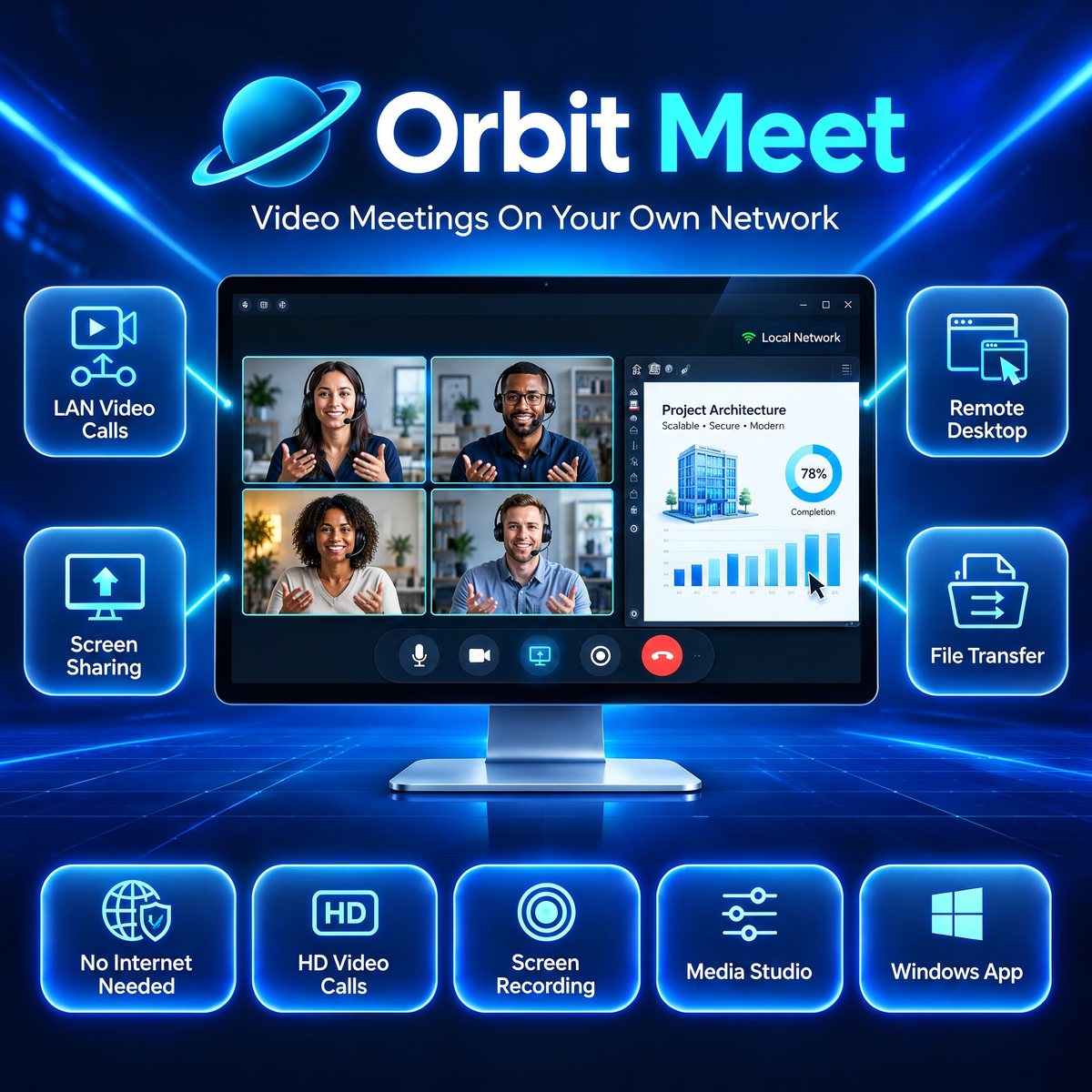
Orbit Meet is a complete meeting and teamwork app for Windows that runs entirely on your own local network. Make video calls, share your screen, control a colleague’s PC, send files at full LAN speed and record everything — with no server, no account and no internet connection needed. Your calls and files go directly between PCs on the same Wi-Fi or office network, so nothing ever leaves your building.
Pay once and own it forever. Download the installer from your account right after checkout and install it on your Windows PC in minutes.
Key Features of This Video Meeting Software
- Video & Audio Calls: 1:1 and group calls (best up to ~6 people) directly between PCs — add people mid-call, raise hand, emoji reactions, speaking indicator, noise suppression and echo cancellation built in.
- Screen Sharing With Live Annotation: Share a screen or one window and let everyone draw on it live — pen, highlighter, laser pointer, arrows, shapes and text. Viewers’ drawings even appear on your real desktop through a click-through overlay.
- Remote Desktop: View or control any paired PC on your network with the owner’s permission (or “always allow” for your own PCs). Multi-monitor switching, quality presets, clipboard sync, file sending and Wake-on-LAN included.
- Record Your Calls: Record the whole call — shared screen with annotations, cameras and everyone’s audio — straight to MP4, with a recording badge visible to all.
- Chat & File Transfer: 1:1 and group chats with offline delivery, read receipts, reactions and search — plus files and whole folders sent by drag and drop at full LAN speed, SHA-256 verified.
- Built-In Studio: Edit video, audio and images without leaving the app — timeline video editor with split/trim/speed/crop, auto captions (Whisper, on your PC), audio editor and a full image editor with filters.
- Private AI Notes: Live captions in calls and automatic meeting notes — summary, action items, decisions and full transcript — all generated on your own PC. No cloud, no internet, nothing uploaded.
- Classroom Mode: Teachers can view student screens as live thumbnails, lock screens, present to the whole class, run quick polls and collect work into organised folders.
- Capture Tools: Region/full-screen screenshots with an annotation editor, a screen recorder with webcam bubble (30/60 fps), audio-only recording and a floating quick-action button over every app.
- Truly Private: No server, no account, no sign-up. Discovery is automatic on your network and every connection is between your own PCs only.
Who Orbit Meet Is For
- Offices & teams that want meetings and screen sharing without subscriptions or cloud uploads.
- Shops, clinics & warehouses where PCs share one network but internet is slow, costly or restricted.
- Teachers & training centres that need classroom screen viewing, locking and work collection.
- Support staff who fix colleagues’ PCs with built-in remote desktop — no third-party tool needed.
- Anyone who prefers paying once over another monthly subscription.
Technical Requirements
- System: Windows 10 or Windows 11 (64-bit).
- Network: PCs on the same Wi-Fi or wired LAN. No internet connection required for calls, chat or file transfer.
- Hardware: Webcam and microphone for video calls (optional — audio and screen sharing work without a camera).
- Delivery: Instant download of the Windows installer (OrbitMeet-Setup.exe) from your account after purchase.
- License: One-time payment. Use SAVE70 at checkout to save 70% today.
Frequently Asked Questions
Does Orbit Meet need the internet?
No. Calls, screen sharing, chat and file transfer all run on your local Wi-Fi or LAN. The app works fully offline — no server, no account, no sign-in.
How many people can join a call?
Group calls use a direct peer-to-peer mesh and work best up to about 6 people on a typical office network.
Is my data private?
Yes. Everything travels directly between your own PCs on your network. Nothing is uploaded to any cloud, and the AI captions and meeting notes are generated on your own PC.
How do I receive the software?
Immediately after checkout, the installer appears in your account downloads. Download it, run it, and start meeting — see our refund policy for the 30-day guarantee.
What if I need help?
Just contact us — real human support is included with every purchase.


Reviews
There are no reviews yet.