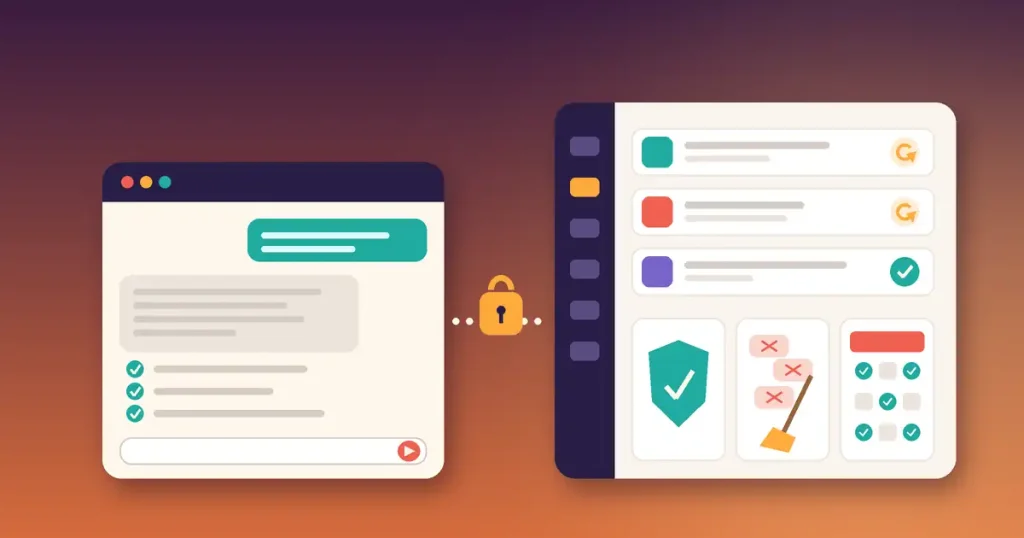
Most small business websites do not break in one dramatic moment. They slowly drift: a plugin goes months without an update, spam comments pile up, a page loses its meta description, a fake user account sits in the dashboard. WordPress maintenance with AI turns that slow drift into a short weekly routine. Instead of clicking through a dozen admin screens, you ask an AI assistant connected to your site to check what needs attention, then you decide what gets fixed.
This guide gives you a practical weekly and monthly maintenance checklist, shows which jobs an AI assistant can handle by chat, and explains which jobs you should still keep in your own hands. It works for any WordPress or WooCommerce site, wherever your customers are.
Why WordPress Maintenance Gets Skipped
Maintenance is rarely hard. It is just scattered. Updates live on one screen, comments on another, users on a third, SEO settings inside a plugin, and store reports somewhere else again. For a busy owner, each check takes only a few minutes, but together they add up to an hour that never seems to be free.
The cost of skipping it shows up later: outdated plugins are a common way sites get compromised, spam makes a blog look abandoned, and missing SEO titles quietly cost you search traffic. A routine you can run in ten minutes is one you will actually keep.
What WordPress Maintenance with AI Looks Like
An AI assistant can only help if it can see your site. That is what an MCP connector does: it gives an assistant such as Claude a secure, permission-controlled way to read and change things on your WordPress site. Once connected, maintenance becomes a conversation:
- “Which plugins, themes or WordPress core updates are available?”
- “Show me comments waiting for moderation and mark the obvious spam.”
- “List users who registered this week.”
- “Check the SEO of my five newest pages and tell me what is missing.”
- “Is my XML sitemap working?”
The key idea is that the AI does the looking and the busywork, while you stay the one who approves changes. If you have not connected an assistant yet, follow our guide on how to connect Claude to WordPress safely first.
Step 1: Make Sure You Have a Recent Backup
Before any maintenance session, confirm a recent backup exists. Use your hosting provider’s backup tool or a dedicated backup plugin, and check that the latest backup finished. Keep this step manual: a backup is your undo button, and you want to be sure it is there before anything changes.
A good habit is to keep at least one backup stored away from your hosting account, so a problem with the server does not take your backups with it.
Step 2: Review Updates Before You Apply Them
Ask the assistant for a list of available updates for WordPress core, plugins and themes. Then go through it with a simple rule set:
- Security fixes first. If a plugin’s changelog mentions a security fix, update it soon.
- Minor updates next. Small version bumps (for example 2.4.1 to 2.4.2) are usually low risk.
- Major updates with care. Big jumps can change how a plugin works. Update these one at a time and check the site after each one.
- Remove what you do not use. Inactive plugins still need updates. If you no longer use one, deactivate and delete it.
You can also ask the assistant to turn automatic updates on or off for individual plugins, so trusted, low-risk plugins update themselves while important ones wait for you.
Step 3: Clean Up Comments and Users
Spam comments and fake registrations are easy to ignore and annoying to clear by hand. By chat, this becomes quick:
- Ask for pending comments, review the list, and have obvious spam marked as spam in bulk.
- Reply to genuine questions from customers while you are there.
- List new user accounts by sign-up date and role, and remove ones that are clearly fake.
- Check that only the right people have Administrator access.
For anything that deletes data, ask the assistant to show you the list first, then confirm. Deleting a real customer account by mistake is far worse than leaving one spam account for another week.
Step 4: Run a Quick SEO Health Check
SEO problems tend to appear quietly: a new page published without a meta description, a product with a duplicate title, an image without alt text, or a broken link after you moved a page. Once a week, ask the assistant to audit your newest pages and list the worst problems first. Then fix the titles and descriptions together, one page at a time.
Once a month, also ask it to confirm the XML sitemap is working and that important pages are not set to noindex. For a deeper walkthrough of this step, read our guide to a WordPress SEO audit with AI.
Step 5: Check Store Health (WooCommerce Sites)
If you run a WooCommerce store, add a few store checks to the routine:
- Ask for orders still in “processing” or “on hold” for more than a few days and follow up on them.
- Pull a low-stock and out-of-stock report so you can reorder in time.
- Review last week’s sales report: revenue, number of orders, average order value and top-selling products.
- Check that expired coupons are removed or switched off.
Refunds and order changes should always be confirmed by you before they happen. A good AI connector asks for that confirmation by default.
Step 6: Finish with Site Health and Speed Basics
End the session by asking for the WordPress site health summary and any server warnings, then clear your caches so visitors see the latest version of your pages. If the site feels slow, our list of WordPress speed and security tips covers caching, image compression and other quick wins.
Keeping AI Access to Your Site Safe
Letting an assistant change your website is a real decision, so set it up with guard rails:
- Use a secure login method such as OAuth, so you never hand your password to the AI.
- Connect as a user with only the permissions needed. An editor account cannot install plugins, for example.
- Start in read-only mode until you trust the routine, then allow changes area by area.
- Review the activity log after each session to see exactly what was done.
Run This Routine with Site Commander MCP
Site Commander MCP is a WordPress plugin that connects your site to Claude so you can run maintenance like this by chatting. Based on its product page, it can:
- Show available updates for WordPress, plugins and themes, and install, update, activate, deactivate or delete plugins and themes, including turning automatic updates on or off
- Approve, reply to, mark as spam or delete comments and reviews, including in bulk
- List, create, update and delete users, filter by role or sign-up date, and send password reset emails
- Audit pages for SEO (titles, descriptions, headings, alt text, links, schema, indexing and broken links), set Rank Math or Yoast SEO fields, manage redirects and check the sitemap
- Show WooCommerce sales, low-stock reports and orders, and manage coupons
- Clear caches and check site health and server details
For safety it uses an OAuth 2.1 connection, gives Claude only the permissions of the user who approves it, offers a read-only mode and per-area on/off switches, keeps passwords and API keys hidden from the AI, cannot run code or edit files, and records every action in an activity log. It works with Claude on the web, desktop, mobile and Claude Code (you need a Claude plan that supports custom connectors) and costs a one-time $29 for one website license.
Your WordPress Maintenance Checklist
Weekly (about 10 minutes):
- Confirm the latest backup finished
- Review and apply plugin, theme and core updates
- Clear spam comments and reply to real ones
- Check new user accounts
- Audit SEO on new or changed pages
- WooCommerce: stuck orders and low stock
Monthly (about 20 minutes):
- Delete unused plugins and themes
- Check Administrator accounts
- Confirm the sitemap works and key pages are indexable
- Review the sales report and expired coupons
- Check site health, then clear caches
- Read the AI activity log
Conclusion
Good maintenance is less about skill and more about rhythm. With WordPress maintenance with AI, the checking, listing and bulk clean-up happen in a short conversation, and you keep control of every change that matters. Start with read-only checks this week, add small fixes next week, and within a month the routine will feel automatic.
If you want to run your site by chat, take a look at Site Commander MCP. Purchases are covered by our refund policy, and if you have questions before you buy, contact the BundleWP team.