WooCommerce license key delivery is the process of giving each buyer a unique software key, activation code or access code automatically, right after they pay. If you sell software, plugins, themes, templates or any product that needs a key, getting this right means happy customers, fewer support emails and no keys handed out for orders that were never paid. This guide walks you through the setup in plain steps, with a checklist you can follow today.
What Does WooCommerce Do on Its Own?
Out of the box, WooCommerce handles downloadable files well, but it does not generate or send license keys. Here is what you get without any extra tools:
- Virtual and downloadable products: tick both boxes on a product, attach files, and buyers get download links in their order email and in My Account.
- Download limits and expiry: you can limit how many times a file is downloaded and how many days the link works.
- Access after payment: under WooCommerce › Settings › Products › Downloadable products, you can choose to grant download access only once payment is confirmed.
- File delivery method: choose between forced downloads, X-Accel-Redirect/X-Sendfile or redirect only, depending on your hosting.
That covers the file. The key is a separate problem: each customer needs a different code, the code must be recorded against their order, and it must only go out when the order is really paid. For that, you need a license delivery tool.
How WooCommerce License Key Delivery Works
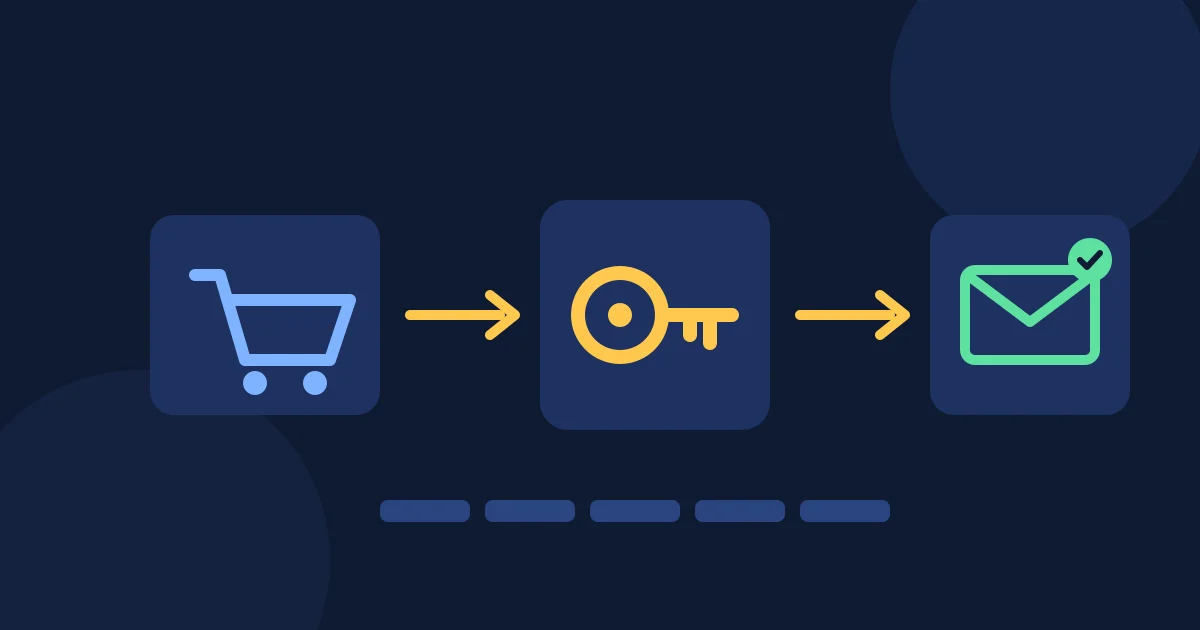
Whatever plugin you use, the flow is the same:
- You prepare keys. Either you paste or import a list of keys (a “pool”), or the plugin generates them in a pattern such as XXXX-XXXX-XXXX-XXXX.
- A customer buys. WooCommerce creates the order.
- The order reaches a paid status. Usually “Processing” or “Completed”.
- The plugin assigns a key. It takes an unused key, links it to that order and customer, and marks it as used.
- The customer receives it. The key appears in the order email, on the thank-you page and in My Account.
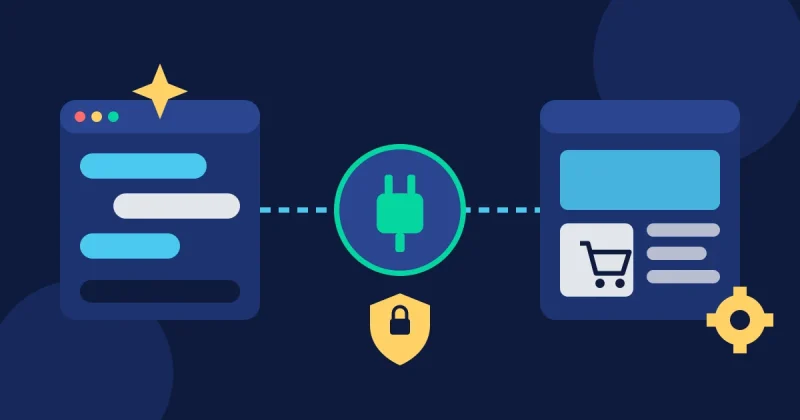
Some tools also offer an activation API, so your software can check online whether a key is valid. If you only need to hand out keys, a simple pool-based tool is enough. If you need activation limits or remote validation, choose a tool that includes an API.
Step-by-Step: Set Up License Key Delivery
Step 1: Make the product virtual and downloadable
Open the product, tick Virtual (no shipping) and Downloadable if there is a file. Add the installer or ZIP. Set a sensible download limit, or leave it unlimited if customers often reinstall.
Step 2: Choose a license delivery tool
There are free and paid plugins in the WordPress directory and on marketplaces, and some store toolkits include a license module. Compare them on these points:
- Can you import a list of existing keys, generate new ones, or both?
- Can you control how many keys each purchase receives?
- Which order statuses trigger delivery?
- Are keys shown in emails and My Account automatically?
- Do you need an activation or validation API?
- Does it work with variable products if you sell different license tiers?
Step 3: Load your keys
If your software vendor or your own license server creates the keys, export them and paste or import them into the product’s key pool. Keep a master copy in a safe place outside WordPress. Load more keys than you expect to sell in a busy week, especially before a sale such as Black Friday.
Step 4: Deliver only after payment
This is the most important setting. Keys should be assigned only when an order is Processing or Completed, never when it is Pending payment or On hold. Otherwise, a buyer who abandons a bank transfer or whose card fails still walks away with a working key. Our WooCommerce order automation guide explains how order statuses move from checkout to delivery.
Step 5: Add clear instructions
Next to the key, tell customers exactly what to do: where to download, where to paste the key, and who to contact if it does not work. Two or three short lines cut support emails sharply.
Step 6: Test with a real order
Place a test order with a real payment method (or a 100% coupon), then check the order email, the thank-you page and My Account. Confirm that the key appears, that it is marked as used, and that the next order receives a different key.
Handling Refunds, Cancellations and Failed Payments
Keys are like cash: once given, they can be used. Decide your rules before problems happen:
- Cancelled or failed orders: check regularly whether any key was assigned to an order that never got paid. If so, deactivate it in your software or license server and do not return it to the pool.
- Refunds: when you refund, revoke or block the key if your software supports it. Mention this in your refund policy so customers know.
- Test orders: label them clearly and remove their keys from use afterwards, so a test key never ends up shared online.
- Lost keys: because the key is stored on the order, you or the customer can find it again in seconds.
Keep Customers Coming Back After Delivery
Delivery is also the start of the relationship. A few simple follow-ups help:
- Send a “getting started” email a day after purchase with setup tips.
- Ask for feedback after a week, once they have used the product.
- Offer related products or upgrades to past buyers. Our post on WooCommerce marketing automation workflows has ready ideas.
- Recover unfinished checkouts with reminders, as covered in our abandoned cart recovery guide.
Common Mistakes to Avoid
- Running out of keys during a sale. Set a reminder to check the pool size weekly.
- Delivering on “Pending payment”. Always tie delivery to a paid status.
- Sending the same key twice because of a manual copy-paste. Let the tool assign keys.
- Hiding the key only in an email that lands in spam. Always show it in My Account too.
- No instructions. A key with no explanation creates a support ticket.
- Storing the only copy of your keys inside WordPress. Keep a backup.
Checklist: WooCommerce License Key Delivery
- ☐ Product set as virtual (and downloadable if there is a file)
- ☐ Download access granted only after payment
- ☐ License tool installed and tested
- ☐ Enough keys loaded, with a backup copy kept outside WordPress
- ☐ Keys per purchase set correctly
- ☐ Delivery triggered only by Processing or Completed status
- ☐ Short activation instructions added
- ☐ Key shown in order email, thank-you page and My Account
- ☐ Test order placed and checked
- ☐ Rules written for refunds, cancelled orders and test orders
- ☐ Weekly reminder to check remaining keys and unpaid orders
Frequently Asked Questions
Can WooCommerce send license keys without a plugin?
Not automatically. WooCommerce can deliver downloadable files, but giving each customer a unique key needs a license delivery plugin or a store toolkit with a license module.
When should a license key be sent?
Only after payment is confirmed, which normally means the order is Processing or Completed. Sending keys on Pending payment or On hold risks giving away keys for unpaid orders.
Where do customers find their key later?
Good tools show the key in the order confirmation email and in the customer’s My Account order details, so buyers can find it again without contacting you.
Do I need an activation API?
Only if your software must check keys online or limit how many devices use one key. If your software already handles activation, a simple key pool is enough.
Deliver Keys and Run Your Store From One Toolkit
If you want license delivery without adding yet another single-purpose plugin, WooFlow Manager includes a product license delivery module that automatically issues a unique key to each customer after purchase. The same toolkit also covers order management, invoices and packing slips, shipment tracking, abandoned checkout recovery, bulk product editing and loyalty points. It is a one-time payment with lifetime access, not a subscription.
Prefer to manage your store by chatting with an AI? Site Commander MCP lets Claude check orders and products for you. Every purchase is covered by our refund policy, and if you have questions first, contact us.