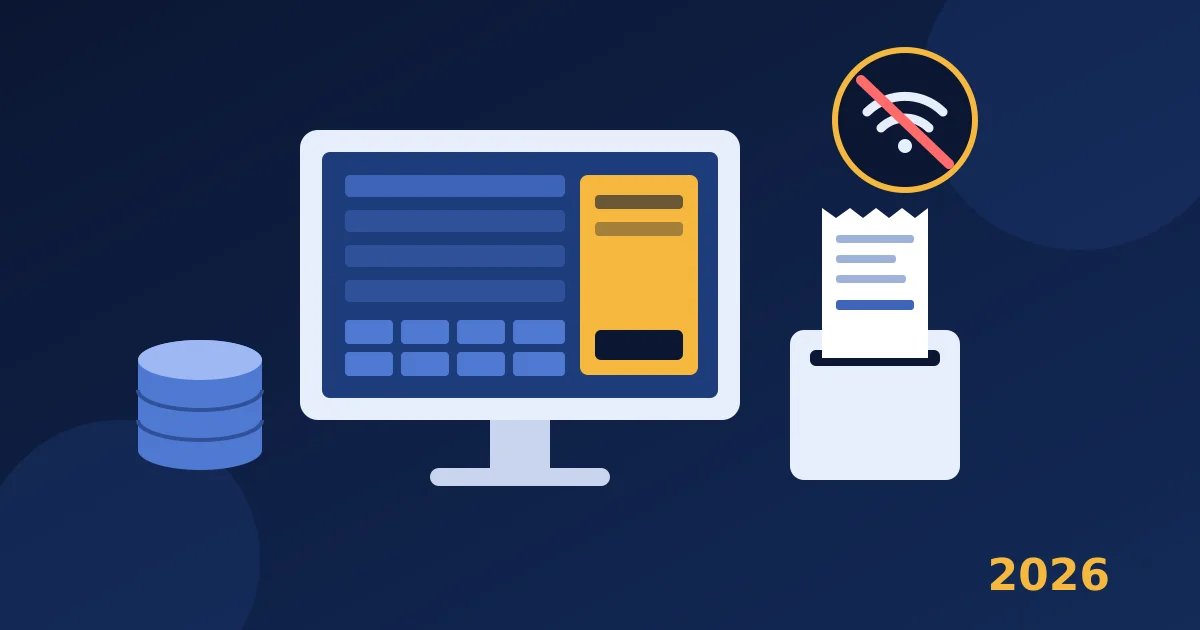
Offline POS software for Windows lets you keep billing customers, updating stock and printing receipts even when your shop’s internet connection goes down. Instead of sending every sale to a cloud server, it saves your data in a local database on the shop PC. For many small retailers, wholesalers and service counters around the world, that one difference decides whether a busy afternoon ends with happy customers or a queue of people waiting for the Wi-Fi to come back.
This guide explains how offline point of sale software works, where it beats cloud POS and where it does not, the features to check before you buy, and a step-by-step setup checklist you can follow in a single afternoon.
What Is Offline POS Software for Windows?
A POS (point of sale) system is the software you use at the counter to ring up sales, take payment, print a receipt or invoice and reduce stock. There are two broad types:
- Cloud POS: the app runs in a browser or tablet and stores your data on the vendor’s servers. It needs the internet for most tasks. Some cloud systems have an “offline mode”, but it is usually limited in time and features, and pending card payments can carry extra risk until the connection returns.
- Offline (desktop) POS: the program is installed on a Windows PC and stores data in a local database, such as SQLite, on that computer. Daily billing, stock updates and reports keep working without an internet connection.
“Offline” does not always mean “never online”. Many desktop programs still need the internet once for licence activation, for occasional licence checks, or for software updates. The important point is that the daily selling work does not depend on the connection.
Who Needs an Offline POS?
Offline POS software for Windows is a strong fit if any of these sound familiar:
- Your shop is in an area with unreliable broadband or mobile data.
- You run a market stall, pop-up, warehouse counter or rural shop where Wi-Fi is weak.
- You already own a Windows PC or laptop and do not want to buy tablets and special hardware.
- You prefer to keep sales and customer data on your own computer rather than on someone else’s server.
- You are tired of monthly POS subscriptions and would rather pay once.
If you run several branches that must share live stock levels, or your staff need to sell from phones on the shop floor, a cloud system may suit you better. Many small single-location businesses, however, simply need a reliable counter that never stops.
Offline POS vs Cloud POS: A Simple Comparison
| Question | Offline Windows POS | Cloud POS |
|---|---|---|
| Works when the internet is down? | Yes, for daily billing and stock | Limited, depends on the vendor’s offline mode |
| Where is the data stored? | On your PC (local database) | On the vendor’s servers |
| Typical pricing | Often a one-time licence | Usually a monthly or yearly subscription |
| Access from anywhere | No, unless you set up remote access | Yes, from any browser |
| Backups | Your responsibility | Handled by the vendor |
| Multi-branch live sync | Usually not | Usually yes |
The trade-off is clear: offline POS gives you independence and lower long-term cost, but you must look after backups and the health of your PC. If you want a wider view of desktop retail tools, read our guide to Windows inventory, billing and POS for small businesses.
8 Features to Check Before You Buy
1. A local database
Ask exactly where the data is stored. A local database means the software reads and writes on your PC, so it stays fast and keeps working without the internet. Also ask whether it needs a separate database server, because that adds setup work.
2. Fast counter billing
The POS screen should let you add products by search or barcode, choose a customer, apply a discount, pick a payment method and print in a few clicks. Test it with a real queue in mind, not just one slow demo sale.
3. Stock that updates automatically
Every sale, purchase and return should change stock levels without manual work. Look for low stock status and a stock movement history so you can see why a number changed.
4. Invoices, quotations and purchase orders
Many shops also sell to trade customers. Being able to send a quotation, turn it into an invoice and record supplier purchase orders in the same program saves retyping. Our guides on quote vs invoice and purchase order vs invoice explain how these documents fit together.
5. Tax settings that match your country
Check that you can set tax rates per product and that invoices show the details your local rules require, such as VAT, GST or sales tax. Tax rules differ by country, so confirm the requirements with your accountant.
6. Reports you will actually read
Daily sales, purchases, stock value, expenses and profit/loss with date filters are the basics. If you also record expenses in the same place, see our simple system for tracking business expenses.
7. Easy backup and restore
With local data, backups are your safety net. The software should let you export a full backup (and ideally an Excel copy) in one click and restore it on another PC if your computer fails.
8. Clear pricing and licensing
Find out whether you pay once or every month, how many PCs a licence covers, whether activation needs the internet, and what the refund policy is. Our article on one-time payment billing software covers the cost comparison in more detail.
What About Card Payments When You Are Offline?
This is the part people often misunderstand. An offline POS program records the sale and the payment method. The card approval itself is handled by your card terminal and payment provider, and that terminal needs its own connection (often its own SIM or phone line) to approve a card in real time.
So during an outage you can keep billing, but plan how you will take payment:
- Keep enough change for cash sales on busy days.
- Ask your payment provider whether your terminal works on mobile data or has an offline mode, and what the limits are.
- For trade customers, record the invoice as unpaid and take a partial or full payment later.
- Write a one-page “internet is down” note for staff so everyone knows what to do.
How to Set Up Offline POS Software for Windows in 7 Steps
- Check your PC. Make sure the computer meets the software’s requirements and runs a supported, updated version of Windows. Windows 10 regular support ended in October 2025, so if your counter PC still runs it, check its security update status with Microsoft or plan a move to Windows 11.
- Install and activate while online. Do the installation and licence activation on a day when your internet is working.
- Set up your business details. Add your shop name, address, tax details and invoice settings.
- Import or add products. Enter SKU, barcode, category, unit, cost price, selling price, tax and opening stock. Start with your top-selling products if the list is long.
- Add customers and suppliers. At least add regular trade customers and main suppliers, so invoices and purchase orders are quick.
- Run a test day. Ring up test sales, a return and a purchase order. Check that stock and reports change correctly, then delete or reverse the tests as the software allows.
- Plan backups. Choose a daily backup time and a place to keep copies, such as a USB drive plus a second location away from the shop.
A good tip: once everything is set up, unplug the network cable or switch off Wi-Fi for ten minutes and run a few sales. That is the only real test of offline POS software for Windows.
Checklist: Choosing and Running an Offline POS
- ☐ Data is stored in a local database on my PC
- ☐ Daily billing, stock and reports work with the internet switched off
- ☐ I know whether activation or licence checks need the internet
- ☐ The POS screen supports barcode search, discounts and payment methods
- ☐ Stock updates automatically for sales, purchases and returns
- ☐ Invoices show the tax details my country requires
- ☐ I can create quotations, invoices and purchase orders
- ☐ One-click backup and restore are available, and I tested a restore
- ☐ My PC runs a supported, updated version of Windows
- ☐ I have a written plan for taking payment during an outage
- ☐ I understand the price, licence terms and refund policy
Frequently Asked Questions
Can a POS system work completely without the internet?
A desktop POS with a local database can handle daily billing, stock and reports without the internet. Most still need a connection for the first licence activation, some periodic checks and updates. Card approvals depend on your payment terminal’s own connection.
Is offline POS software safe for my data?
Your data stays on your own computer, which many owners prefer. The main risk is losing the PC to failure or theft, so protect it with a Windows password, keep Windows updated and keep regular backups in more than one place.
Is offline POS cheaper than cloud POS?
Often, yes, over a few years. Many desktop programs are sold for a one-time price, while cloud systems usually charge every month. Compare the total cost over two or three years, including hardware and any paid add-ons.
Can I use my existing barcode scanner and receipt printer?
Most USB barcode scanners act like a keyboard, so they work with any program that has a search or barcode field. For printers, check that Windows recognises the printer and try a test receipt before you go live.
Try Billify: Offline-Friendly POS for Windows With No Monthly Fees
If you are looking for offline POS software for Windows, Billify combines a POS screen, stock tracking, invoices, quotations, purchase orders, payments, returns, expenses, reports, discount codes, loyalty points and backup/restore in one desktop app. It stores everything in a local SQLite database on your PC, with no external database server needed. An internet connection is required for licence activation and verification, while day-to-day billing, stock and reports run from the local database. It runs on Windows 10 and Windows 11 (64-bit) and is a one-time purchase with lifetime access.
Need full business finance tools as well? Take a look at Pro Fin Suite. Every purchase is covered by our refund policy, and if you have questions about your setup, contact us before you buy.