A customer asks, “How much will this cost?” You send a price. A week later the job is done and you need to get paid. Two documents, two very different jobs. Mixing them up is one of the most common paperwork mistakes in a small business, and it leads to disputes, late payments and messy records. This guide explains quote vs invoice in plain terms: what each one is, what to put on it, when to send it, and how to turn an accepted quote into an invoice without typing everything twice.
Quote vs Invoice: The Short Answer
A quote (also called a quotation or estimate) is sent before the work or sale. It tells the customer what you are offering and what it will cost, so they can decide whether to go ahead.
An invoice is sent after the customer has agreed and you have delivered the goods or service (or reached an agreed milestone). It asks for payment of an amount that is now owed.
Put simply: a quote says “this is what it would cost”, and an invoice says “this is what you owe”. One opens the deal, the other closes it.
What Goes on a Quote
A good quote removes doubt so the customer can say yes quickly. Include:
- Your business details: name, address, email and phone.
- Customer details: who the quote is for.
- A quote number and date, so you can find it later and match it to the invoice.
- Line items: each product or service, quantity, unit price and line total.
- Discounts and taxes, shown clearly so there are no surprises later.
- A validity date, for example “valid for 30 days”, because your costs can change.
- Scope and terms: what is included, what is not, delivery time and any deposit you need.
Whether a quote is legally binding once accepted depends on where you and your customer are and on the wording you use. If that matters for your work, check your local rules or ask an adviser, and keep your terms clear either way.
What Goes on an Invoice
An invoice is a request for payment and also a record for your books. Most invoices include:
- The word “Invoice” and a unique, sequential invoice number.
- Invoice date and the date the goods or services were supplied.
- Your details and the customer’s details.
- Line items that match what was actually delivered, which may differ from the original quote.
- Subtotal, discounts, tax and total due.
- Payment terms: due date, accepted payment methods and any reference the customer should use.
- Payments already received, such as a deposit, and the balance left to pay.
Many countries have specific rules about what a tax invoice must show, such as tax registration numbers or wording. These differ from place to place, so check what applies to your business with your local tax authority or accountant.
Key Differences at a Glance
| Quote | Invoice | |
|---|---|---|
| When it is sent | Before the sale or job | After delivery or a milestone |
| Purpose | Offer a price and win the work | Request payment |
| Amount | Proposed, can change | Final amount owed |
| Expiry | Has a validity date | Has a payment due date |
| In your accounts | Not recorded as a sale | Recorded as a sale and money owed to you |
How to Turn an Accepted Quote into an Invoice (Step by Step)
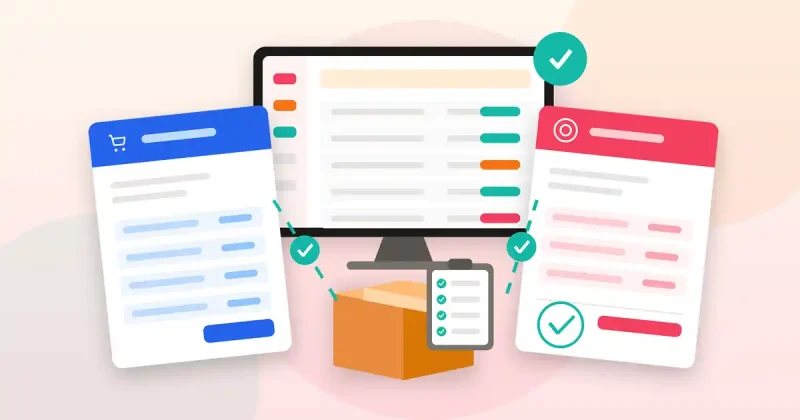
This is where most time gets wasted. Here is a simple flow that works for shops, wholesalers and service businesses:
- Get clear acceptance. Ask the customer to confirm in writing, by email or a signed copy, and note the quote number.
- Take a deposit if your terms ask for one. Record it against the customer straight away.
- Deliver the work or goods. Write down any changes: extra items, removed items or a different quantity.
- Convert, don’t retype. Create the invoice from the quote so the customer, items and prices carry over. Retyping is how errors creep in.
- Adjust to match reality. Update quantities and items to what was actually delivered, and apply any agreed discount.
- Show the deposit and the balance. The customer should see exactly what is left to pay.
- Send it promptly with clear payment terms. The sooner the invoice goes out, the sooner you are likely to be paid.
- Record payments as they arrive, including part payments, so you always know who still owes you.
Common Mistakes to Avoid
- Sending an invoice instead of a quote. It looks like you are demanding money for work the customer hasn’t agreed to.
- No expiry date on quotes. A customer may accept a six-month-old price after your costs have gone up.
- Invoice doesn’t match the quote, with no explanation. If the job changed, say so on the invoice or in a note.
- Gaps or duplicates in invoice numbers. This makes your records hard to follow and harder to check later.
- Losing track of part payments. Keep payment history in the same place as the invoice.
Managing Quotes and Invoices in Billify
If you still build quotes in a word processor and invoices in a spreadsheet, every job means copying the same data twice. Billify is billing and POS software for Windows that keeps both in one place. Based on its product page, you can:
- Create quotations and convert accepted quotes to invoices, so the customer and line items carry over.
- Create customer invoices with line items, discounts or coupon codes, and generate PDF invoices.
- Record full or partial payments with method, reference and history.
- Keep customer and supplier records for sales, purchases, payments and reports.
- Add products with SKU, barcode, category, unit, cost price, selling price, tax and stock details, so prices on quotes stay consistent.
- Review sales, purchases, stock, expenses and profit/loss reports with date filters.
- Export database and Excel backups and restore them when needed.
Billify runs on Windows 10 and 11 (64-bit) with a local SQLite database, so your billing data stays on your own PC. An internet connection is needed for license activation and verification. It is a one-time payment of $29 with lifetime access, and no monthly subscription. You can see the full Billify feature list here.
Want the bigger picture? Read our guide to choosing a small business POS system for billing, stock and invoices, and our step-by-step guide on how to track business expenses so your costs and your invoices tell the same story.
Quick Checklist
- ☐ Quote has a number, date, line items, taxes and a validity date
- ☐ Scope, exclusions and deposit terms written on the quote
- ☐ Written acceptance saved with the quote number
- ☐ Invoice created from the quote, not retyped
- ☐ Invoice adjusted to what was actually delivered
- ☐ Deposit and balance due shown clearly
- ☐ Payment terms and due date on every invoice
- ☐ Local invoice and tax requirements checked with an adviser
- ☐ Part payments recorded as they arrive
Conclusion
The quote vs invoice question has a simple answer: quotes win the work, invoices get you paid. Keep them as separate documents, link them with clear numbers, and convert one into the other instead of starting from scratch. You’ll make fewer mistakes, look more professional and spend less time on paperwork.
If you’d like quotes, invoices, payments and stock in one Windows app, take a look at Billify for a one-time $29. Every purchase is covered by our refund policy, and you can contact us with any questions before you buy.