When you start buying stock or services from suppliers, two documents show up again and again: the purchase order and the invoice. They look alike, they list the same items, and they often carry the same totals, so it is easy to mix them up. This guide explains purchase order vs invoice in plain words: who sends each one, when it is sent, what it should contain, and how to match them so you never pay for something you did not order or did not receive.
The examples work for any small or mid-sized business, whether you run a shop, a workshop, an agency or a small wholesale operation.
Purchase Order vs Invoice: The Short Answer
A purchase order (PO) is created by the buyer before the purchase. It says, “This is what we want to buy, how many, at what price, and when we need it.” When the supplier accepts it, the PO becomes the agreed basis for the deal.
An invoice is created by the seller after the goods are delivered or the work is done. It says, “This is what we supplied, and this is how much you owe us, by this date.”
A simple way to remember it: the purchase order asks, the invoice bills. One starts the deal, the other closes it.
Key Differences at a Glance
- Who issues it: the buyer issues the purchase order; the seller issues the invoice.
- When: the PO comes before delivery; the invoice usually comes after delivery (or at an agreed milestone).
- Purpose: the PO requests and authorises a purchase; the invoice requests payment.
- In your books: for the buyer, an approved PO is a commitment to spend; a supplier invoice becomes a bill to pay. For the seller, a PO received is a confirmed order; the invoice they send becomes money owed to them.
- Numbering: each side uses its own sequence. A good invoice quotes the buyer’s PO number so both records can be linked.
If you also send prices to customers before they buy, the quote is a third document with its own role. Our guide on quote vs invoice and how to turn an accepted quote into an invoice covers the selling side of the same story.
What to Include in a Purchase Order
A clear PO prevents most supplier disputes. Include:
- Your business name, address and contact person.
- The supplier’s name and contact details.
- A unique PO number and the date.
- Each item: description or code, quantity and unit price.
- The total, plus any delivery charges you have agreed.
- The delivery address and the date you need the goods.
- Payment terms you have agreed with the supplier (for example, payment within an agreed number of days after the invoice).
- Who approved the order, if more than one person can buy for the business.
Example: a café orders 20 bags of coffee beans and 500 paper cups. The owner raises PO number 0142, lists both items with prices, asks for delivery on Thursday and sends it to the supplier by email. Nothing has been billed yet; the café has only made a firm request.
What to Include in an Invoice
An invoice needs enough detail for the customer to check it and pay it quickly:
- The word “Invoice”, a unique invoice number and the issue date.
- Seller and buyer names and addresses.
- The buyer’s PO number, if there was one.
- Each item or service supplied, with quantity, unit price and line total.
- Subtotal, any taxes and the final amount due.
- The due date and how to pay.
Tax wording, tax registration numbers and how long you must keep invoices depend on where you trade. Check your local rules or ask an accountant before you set up your invoice template, rather than copying a format from another country.
How the Documents Flow: From Order to Payment
Most purchases follow the same five steps:
- Need: someone notices stock is low or a service is required.
- Purchase order: the buyer sends a PO to the supplier.
- Delivery: the goods arrive, usually with a delivery note (also called a packing slip) listing what is in the box.
- Invoice: the supplier sends an invoice for what was delivered.
- Payment: the buyer checks the paperwork and pays by the due date.
The delivery note matters more than many owners think. It is your proof of what actually arrived, which may not be the same as what you ordered.
How to Match a Purchase Order and an Invoice Before You Pay
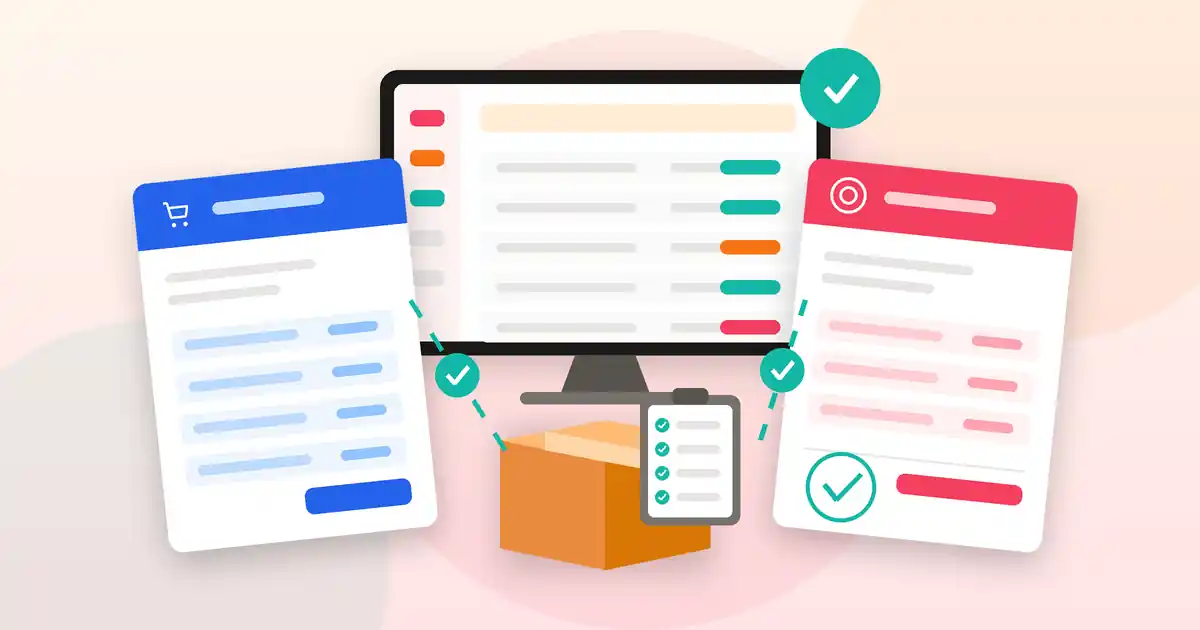
Accountants call this a “three-way match”: you compare the purchase order, the delivery note and the invoice before money leaves your account. It takes a couple of minutes and catches most billing mistakes.
- Find the PO number on the invoice and pull up your original order.
- Compare items and quantities on all three documents. If you ordered 20 bags but received 18, you should only pay for 18.
- Compare prices. The unit price on the invoice should match the price agreed on the PO.
- Check extras. Delivery fees or other charges should be ones you agreed to.
- Resolve differences first. Contact the supplier and ask for a corrected invoice or a credit note before paying.
- Record the payment and mark the PO as closed so it is not paid twice.
Example: the café’s invoice shows 20 bags of coffee, but the delivery note shows 18 and two were marked “back-ordered”. The owner asks the supplier to bill the two missing bags when they arrive, and pays only for what was received.
Common Mistakes Small Businesses Make
- Ordering by phone or chat with no PO. When there is a dispute, nobody can prove what was agreed.
- Paying from the invoice alone. Without checking the order and delivery note, short deliveries and price changes slip through.
- Losing the paper trail. Documents spread across email, paper folders and spreadsheets are hard to match.
- No numbering system. Without unique PO and invoice numbers, the same bill can be paid twice.
- Forgetting to track the spend. Supplier bills are business expenses; record them as you pay. Our guide on how to track business expenses in 7 simple steps shows a simple routine.
Managing Purchase Orders and Invoices on a Windows PC
You can start with templates, but once you have regular suppliers it helps to keep orders, deliveries and invoices in one place. Pro Fin Suite is Windows desktop software whose business management module includes:
- Purchase orders and supplier records
- Delivery notes
- Quotations and invoices
- Inventory
- A daily cash log, plus an expense manager and reports in the finance module
That means you can raise a PO for a supplier, keep the delivery note next to it, and record the invoices you send to your own customers, without switching between separate apps. The suite also includes CRM, projects, office tools for PDF, Excel and Word files, and security utilities. It is a one-time payment of $45 with lifetime access, not a subscription. See the full module list on the Pro Fin Suite product page.
If you mainly run a retail counter and need POS billing with stock control, compare it with Billify billing and POS software as well.
Quick Checklist
- Every supplier order has a written PO with a unique number.
- Each PO lists items, quantities, prices, delivery date and payment terms.
- Delivery notes are checked against the box and kept with the PO.
- Supplier invoices quote your PO number.
- You match PO, delivery note and invoice before paying.
- Differences are fixed with a corrected invoice or credit note first.
- Paid POs are marked closed and the expense is recorded.
- Your invoice template follows your local tax rules (checked with an adviser).
Conclusion
The difference between a purchase order vs invoice comes down to direction and timing: the buyer sends the PO before delivery to request goods, and the seller sends the invoice afterwards to request payment. Keep both, add the delivery note, and match all three before you pay. That one habit protects your cash and keeps supplier relationships calm.
If you want orders, delivery notes, invoices and expenses in one Windows app, take a look at Pro Fin Suite. Purchases are covered by our refund policy, and if you have questions before you buy, contact us.