
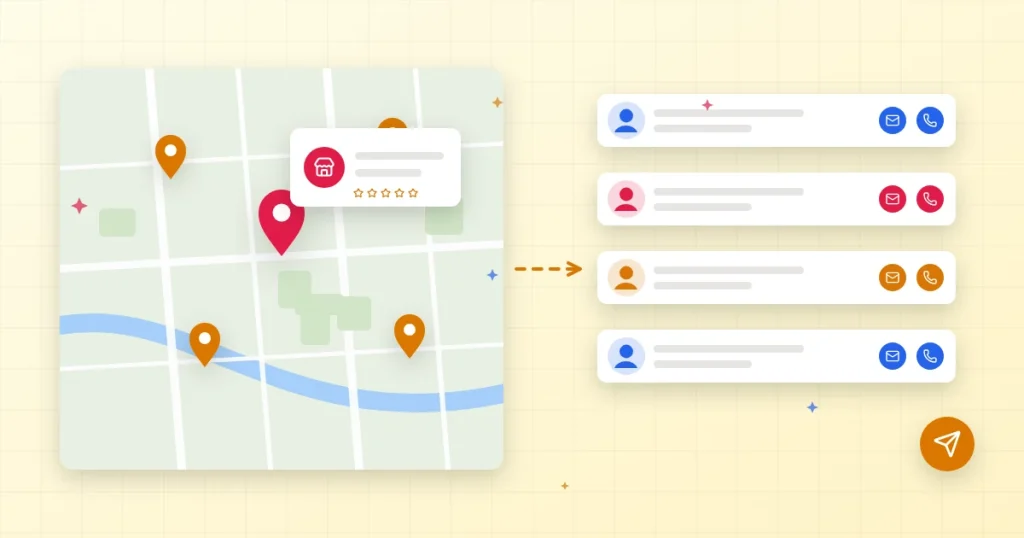
Every day, local businesses update their Google Maps listings with names, phone numbers, websites, opening hours and customer reviews. For agencies, freelancers, software sellers and B2B service providers, that makes Google Maps one of the richest sources of fresh, local business leads anywhere in the world.
The problem is time. Copying listings by hand, one at a time, can take hours for a list of just 100 businesses. This guide shows you how to extract business leads from Google Maps step by step, how to clean and qualify them, and how to turn a spreadsheet of names into real conversations without spamming anyone.
Why Google Maps Is a Great Source of B2B Leads
Unlike old directories, Google Maps listings are usually kept up to date by the businesses themselves. A typical listing can show:
- Business name and category (for example “dental clinic” or “car repair”)
- Address and map location
- Phone number and website
- Star rating and number of reviews
- Opening hours
This information tells you a lot before you ever make contact. A restaurant with 400 reviews and no website may need a web designer. A clinic with a 3.2-star rating may be interested in reputation management. A busy shop with an outdated site may want online booking. Good lead generation starts with spotting these signals.
Step 1: Choose One Niche and One Location
The biggest mistake beginners make is searching for “businesses” everywhere. Start narrow. Pick one type of business you can genuinely help, and one city or region.
- Good: “Physiotherapy clinics in Manchester”
- Good: “Wedding photographers in Austin”
- Too broad: “Small businesses in the USA”
A narrow list makes your outreach more relevant, and relevance is what gets replies. Once one niche works, copy the same process to the next city.
Step 2: Build Your Search Keywords
Search Google Maps the same way a customer would. Write down 3 to 5 variations of the business type, because owners categorise themselves differently. For example, for dentists you might use “dentist”, “dental clinic”, “orthodontist” and “cosmetic dentist”. Running several variations finds listings that a single keyword would miss.
Step 3: Collect the Data (Manual vs Automated)
Manual method: open each listing and copy the name, phone, website and rating into a spreadsheet. This is fine for 10 to 20 leads, but slow and error-prone beyond that.
Automated method: use a Google Maps data extractor to run your searches in bulk and export the results. A good extractor should:
- Run several keyword and location searches in one go
- Accept a direct Google Maps search URL
- Scroll through results automatically so you don’t miss listings
- Remove duplicates
- Export everything to a spreadsheet-friendly format
Our own tool, DataXtract Pro, was built for exactly this. Its Google Maps extractor collects business names, addresses, phones, websites, emails, ratings, categories, opening hours and review data, with bulk search, direct URL support, auto-scroll and duplicate removal. It runs on Windows, macOS or Linux with Node.js and Chrome, and it is a one-time $30 purchase rather than a monthly subscription.
If you prefer a classic Windows desktop app, All In One Smart Extractor can also pull leads from maps, marketplaces and social sites and export them to CSV.
Step 4: Clean and Enrich Your List
Raw data always needs a quick tidy-up before you use it:
- Remove duplicates and closed businesses. Delete listings marked as permanently closed.
- Standardise phone numbers. Use one format, including the country code, so your dialler or messaging tool reads them correctly.
- Check emails. Many listings don’t show an email address. Visit the website’s contact page, and verify addresses before sending to protect your sender reputation.
- Add a “reason to contact” column. For example: “No website”, “Rating under 4.0”, “Site not mobile-friendly”. This becomes the first line of your message.
Step 5: Qualify and Score Your Leads
Not every listing is worth contacting. A simple scoring system helps you spend time where it matters:
- +2 points if the business clearly has the problem you solve
- +1 point if it has more than 50 reviews (an active, established business)
- +1 point if it has a website and a phone number
- -2 points if it is a large chain or franchise (decisions are made at head office)
Start with leads that score 3 or more. You will usually get better results from 50 well-chosen businesses than from 1,000 random ones.
Step 6: Reach Out Respectfully and Personally
Your message should prove that you looked at their business. A simple structure works well:
- One line about something specific you noticed (their reviews, their website, their opening hours).
- One line on how you can help, with a clear result.
- One easy question, such as “Would a short example be useful?”
Keep it short, send in small batches, and follow up once or twice at most. DataXtract Pro includes SMTP email campaigns with templates and dynamic variables, Twilio-based SMS and browser-based WhatsApp messaging, so you can personalise each message with the business name and your “reason to contact” column.
Step 7: Track Replies and Follow Up
Leads go cold quickly if nobody follows up. Track every reply in one place, even if it’s just a spreadsheet with columns for “Contacted”, “Replied”, “Meeting booked” and “Won”. If your pipeline grows, a CRM saves hours. Auto Lead Pilot AI lets you import extracted contacts, tag them, move deals through a visual pipeline and run automated follow-up sequences across email, WhatsApp and SMS.
Want to see the whole process from extraction to closed deal? Follow our step-by-step lead generation workflow, and learn how small business CRM automation makes sure every lead gets a follow-up.
Stay Legal and Ethical
Lead extraction comes with responsibilities. Before you start:
- Read and respect the terms of service of any website you collect data from.
- Follow the privacy and marketing laws that apply to you and your recipients (for example GDPR in Europe or CAN-SPAM in the US). If you’re unsure, check with a legal adviser.
- Collect only business contact details you actually need, and store them securely.
- Always include a simple way for people to opt out, and honour opt-outs straight away.
- Send at a reasonable pace. Mass, untargeted messages hurt your reputation and your results.
Quick Checklist
- ☐ One niche and one location chosen
- ☐ 3–5 search keyword variations written down
- ☐ Listings extracted and duplicates removed
- ☐ Phones standardised and emails verified
- ☐ “Reason to contact” added for each lead
- ☐ Leads scored, and only the best contacted first
- ☐ Short, personal messages with an easy opt-out
- ☐ Replies tracked and followed up
Conclusion
Google Maps is full of businesses that need what you sell. The difference between a wasted afternoon and a steady pipeline is process: a narrow target, clean data, a clear reason to reach out, and consistent follow-up. Start with one niche and one city this week, measure your reply rate, and improve from there.
Ready to save hours of copying and pasting? See what DataXtract Pro can do for a one-time $30. Every purchase is covered by our refund policy, and you can contact us with any questions before you buy.