MCP for WordPress is a way to let an AI assistant such as Claude safely read and manage your WordPress website by chat, using a set of clearly defined actions instead of you clicking through the admin area. If you have heard the term “MCP” and wondered whether it matters for a small business site or a WooCommerce store, this guide explains it in plain words, shows what you can do with it, and walks you through the safety checks to make before you turn it on.
What Is MCP? The Simple Explanation
MCP stands for Model Context Protocol. It is an open standard that Anthropic introduced in November 2024 so that AI assistants can connect to outside apps and data in one common way. In December 2025 it was handed over to the Agentic AI Foundation, part of the Linux Foundation, so it is now developed as a shared, vendor-neutral standard rather than by one company alone.
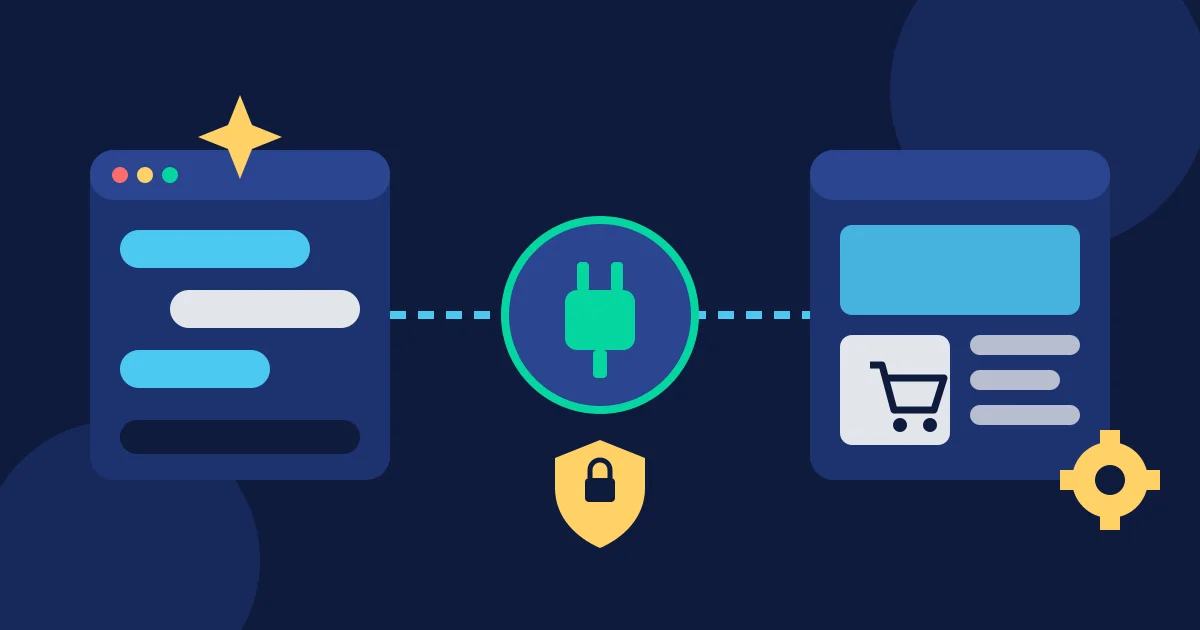
A helpful way to picture it: MCP is like a universal plug socket for AI. Before MCP, every AI tool needed its own custom integration for every app. With MCP, an app offers a “server” that describes what it can do, and any AI assistant that speaks MCP can use it.
There are three parts to remember:
- The client: the AI app you chat with, for example Claude on the web, desktop or mobile.
- The server: the piece that sits next to your app (here, your WordPress site) and lists the actions the AI is allowed to use.
- Tools: the individual actions, such as “list posts”, “update a product price” or “set an SEO title”. Each tool has a name, a short description and the details it needs.
The AI reads the list of tools, picks the right one for your request, and your site carries it out. The answer then comes back into the chat.
How MCP for WordPress Works
On a WordPress site, the MCP server is usually a plugin. It uses the WordPress REST API under the hood, which is why most MCP plugins ask for HTTPS and “pretty” permalinks. Here is what happens when you type a request:
- You write a normal sentence, for example: “Show me all WooCommerce orders that are still processing.”
- Claude looks at the tools your site offers and chooses the one that lists orders, with the status set to “processing”.
- The plugin checks that the connected user is allowed to see orders, runs the action and sends back the results.
- Claude turns the raw data into a short, readable answer and asks what you want to do next.
The important part is that the AI never gets a free hand. It can only use the tools the plugin exposes, and only with the permissions of the WordPress user who approved the connection. If there is no tool for editing theme files, the AI simply cannot edit theme files.
The WordPress project is moving in the same direction. WordPress 6.9 introduced an Abilities API, a common way for WordPress and plugins to describe what they can do, and the WordPress team has published an official MCP Adapter that can expose those abilities to AI tools. That work is mainly aimed at developers today, while ready-made plugins focus on giving site owners a quick, safe setup.
MCP vs a Normal Plugin or Chatbot
People often mix MCP up with other “AI for WordPress” ideas. Here is how they differ:
- An AI writing plugin adds a “generate text” button inside the editor. It helps with one job, inside one screen.
- A website chatbot talks to your visitors. It answers their questions but does not manage your site for you.
- MCP for WordPress connects your own AI assistant to your site’s admin features. You talk to it as the owner, and it can work across posts, products, orders, SEO and settings, within the limits you set.
So MCP is less about adding a new feature to your site and more about giving you a new way to run it.
What You Can Do with MCP on a WordPress Site
What is possible depends on the tools your MCP plugin offers. For a typical small business site or online shop, the most useful jobs are:
Content and blogging
Draft, edit, schedule and publish posts and pages, set categories and featured images, and restore an older revision when something goes wrong. A request like “Schedule this post for Monday at 9 AM in the News category” becomes one sentence instead of five screens.
WooCommerce store tasks
Create products and variations, change prices in bulk, check stock, find orders by status and pull sales summaries. Our guides on bulk editing WooCommerce products and tracking WooCommerce stock with AI chat show these jobs step by step.
SEO checks and fixes
Ask the AI to audit a page, then set a better SEO title, meta description and focus keyword in Rank Math or Yoast SEO. See our walkthrough of a WordPress SEO audit with AI for a safe routine.
Routine maintenance
Check which plugin and theme updates are waiting, clean up spam comments, review new users and clear caches. Our weekly WordPress maintenance checklist you can run by chat turns this into a 15-minute habit.
Is MCP for WordPress Safe?
It can be, but safety depends on how the MCP plugin is built and how you set it up. Giving any tool access to your admin area is a real decision, so look for these protections before you connect:
- A secure sign-in (OAuth). You approve the connection on your own site. You should never paste your WordPress password into the AI.
- User-based permissions. The AI should only get the rights of the user who approved it. An editor’s connection should not be able to install plugins.
- Read-only mode. Let the AI look without changing anything while you test it.
- Area switches. Turn on content and SEO, for example, but keep plugins and users off until you need them.
- Hidden secrets. Passwords, API keys and licence keys of other plugins should never be shown to the AI.
- No code execution or file editing. This removes a whole class of risk.
- An activity log. Every action should be recorded so you can check who did what, and when.
Also remember that AI can misunderstand a request. Ask it to confirm before big or irreversible changes such as deleting content, refunding orders or changing many products at once, and always keep a recent backup.
How to Get Started with MCP for WordPress
The setup is usually quick. The general flow looks like this:
- Prepare your site. Make a full backup, confirm HTTPS is active and that permalinks are not set to “Plain”.
- Install an MCP plugin and activate it.
- Copy the connector link the plugin gives you.
- Add it in your AI app. In Claude this is under Settings, then Connectors, then “Add custom connector”. You need a Claude plan that supports custom connectors.
- Approve the connection by logging in to your own site.
- Run a harmless first test, such as “List my five latest posts.”
- Widen access slowly as you gain confidence.
For screenshots-level detail, follow our full guide on how to connect Claude to WordPress safely.
MCP for WordPress Checklist
- ☐ I understand MCP only gives the AI the tools the plugin exposes
- ☐ Full site and database backup taken
- ☐ HTTPS on, permalinks not “Plain”
- ☐ AI plan supports custom connectors
- ☐ Plugin uses a secure OAuth sign-in
- ☐ Read-only mode used for the first test
- ☐ Only the needed areas switched on
- ☐ Big changes require my confirmation
- ☐ Activity log reviewed after the first real changes
Frequently Asked Questions
Do I need to know how to code to use MCP for WordPress?
No. With a ready-made plugin you install it like any other plugin, paste a link into your AI app and approve the connection. Developers can build their own MCP tools, but site owners do not have to.
Does MCP work with WooCommerce?
Yes, if the MCP plugin includes WooCommerce tools. Check the plugin’s feature list for products, variations, orders, coupons and sales reports before you choose one.
Can the AI break my website?
It can only do what its tools and your permissions allow. A well-built plugin blocks code execution and file editing, and offers read-only mode and an activity log. Keep backups and ask for confirmation before large changes, just as you would with a new team member.
Is MCP only for Claude?
MCP is an open standard, so other AI apps can support it too. Support for custom connectors differs between apps and plans, so check your AI app’s settings before you buy a plugin.
Try MCP on Your Own Site
MCP for WordPress turns your AI assistant into a careful helper that can write posts, manage products and orders, fix SEO and handle routine upkeep by chat, as long as you set clear limits. Start small, test in read-only mode and widen access step by step.
If you want a ready-made option, Site Commander MCP is a Claude AI WordPress plugin with OAuth 2.1 sign-in, read-only mode, on/off switches for each area, hidden secrets, no code execution and a full activity log. It works with Claude on the web, desktop, mobile and Claude Code, and covers content, WooCommerce, Rank Math or Yoast SEO, plugins and settings. It costs a one-time $29 for one website licence, with updates and support included. You can read our refund policy before you buy, and if you have questions about your hosting or setup, just contact us.