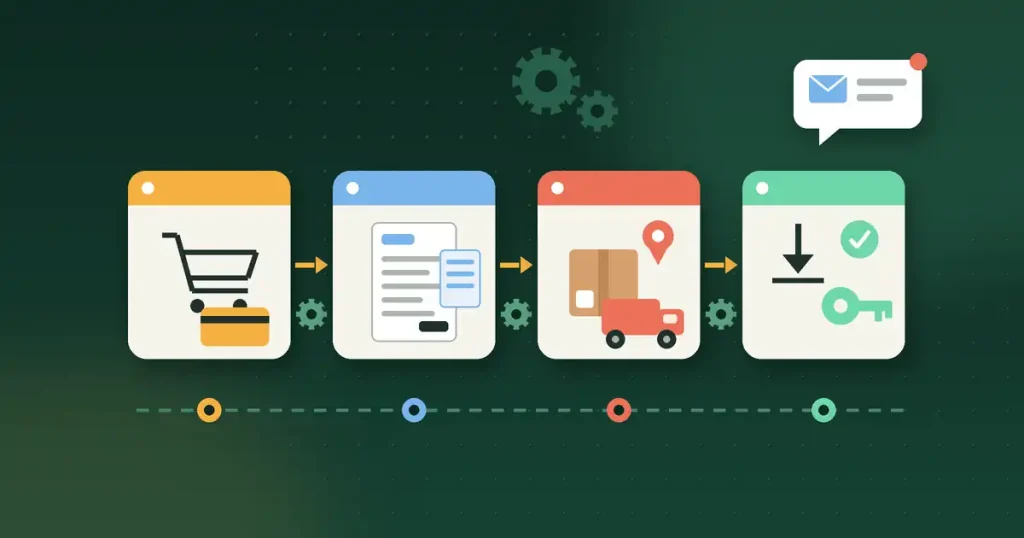
Every WooCommerce order follows the same path: payment, a confirmation email, an invoice, packing, shipping, a tracking update and, for digital products, a download or license key. When you handle each of those steps by hand, a busy week turns into hours of copying, clicking and answering “where is my order?” emails. WooCommerce order automation means letting your store do the repeat work for you, so every order moves from checkout to delivery in the same reliable way. This guide shows you how to map your order flow, what to automate first, and how to set it up step by step without losing control.
What WooCommerce order automation really means
Automation does not mean handing your store to a robot. It means writing down the rules you already follow and letting software apply them every time. A typical rule looks like this: “When an order is paid, create the invoice, attach it to the customer email and add the order to today’s packing list.” The rule is yours; the software just never forgets it.
Good order automation does three things:
- Removes copy-paste work such as typing invoice details, tracking numbers or license keys.
- Keeps customers informed with the right email at the right moment, so they don’t need to ask.
- Gives you one clear view of which orders need attention and which are done.
Step 1: Map your current order flow
Before you install anything, write down what happens to a normal order today. Take a recent order and list every step, who does it and how long it takes. For a store selling physical goods, the list often looks like this:
- Customer pays at checkout.
- You check the order and payment in the dashboard.
- You create or print an invoice and a packing slip.
- You pack the parcel and book shipping.
- You copy the tracking number into the order and email the customer.
- You mark the order as Completed.
Circle every step where you copy information from one place to another, or send the same message again and again. Those are your first automation targets.
Step 2: Use WooCommerce order statuses as your workflow
WooCommerce already gives each order a status, such as Pending payment, Processing, On hold, Completed, Cancelled, Refunded and Failed. Treat these statuses as the stages of your workflow and decide what should happen at each one.
- Processing: payment received, the order is waiting to be packed. This is where invoices and packing slips should be ready.
- On hold: waiting for something, for example a bank transfer. Keep a short list and check it daily.
- Completed: shipped or delivered. The customer should already have their tracking link or download.
By default, WooCommerce usually completes paid orders on its own only when every item is both virtual and downloadable. Orders with physical items stay in Processing until you complete them, so a clear routine for that stage matters most.
Step 3: Automate invoices and packing slips
Creating documents by hand is one of the slowest parts of order handling. An invoice and packing slip generator builds both from the order data, so names, addresses, products and totals are always correct. Set it up so that:
- the invoice is created when the order reaches Processing,
- packing slips can be printed in a batch for all orders waiting to ship,
- your business details and logo appear the same way on every document.
Invoice rules, required details and tax wording differ from country to country, so check your local rules or ask an accountant what your invoices must include.
Step 4: Send tracking updates automatically
“Where is my order?” is the most common question any store gets. A shipment tracking manager lets you add the carrier and tracking number to the order once, and the customer gets the details in their order email and account page. You stop writing the same reply by hand, and customers can check progress themselves at any hour.
Tip: if you ship with more than one carrier, set up each carrier once so the tracking link is built correctly every time.
Step 5: Deliver digital products and license keys instantly
If you sell software, templates or other digital goods, the best order is one that delivers itself. Once payment clears, the customer should get their download link and, if needed, a unique license key without you lifting a finger. Automatic license delivery means no late-night emails with keys and no risk of sending the same key twice.
Keep your key list stocked and check now and then how many unused keys are left, so a sale never arrives when the pool is empty.
Step 6: Handle exceptions without slowing every order
Automation should run the normal path and flag the unusual one. Decide in advance how you will deal with:
- Abandoned checkouts: a reminder email can bring back customers who stopped before paying. Our guide to WooCommerce abandoned cart recovery covers the timing and wording.
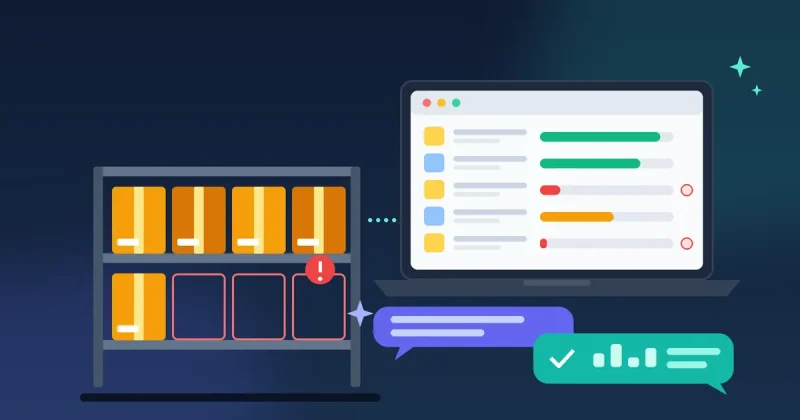
- Out-of-stock items: back-in-stock alerts let interested customers sign up and hear from you when the product returns.
- Refunds and cancellations: keep these manual. They involve money and judgement, so a person should approve them.
- Repeat customers: a purchase timeline shows a customer’s past orders, which helps you answer questions faster.
Step 7: Review reports and improve each month
Once your order flow runs on its own, use reports to spot problems early: orders stuck in Processing, a rise in abandoned checkouts, or products that sell out often. Set a monthly 30-minute review, pick one thing to improve, and change one rule at a time so you can see what worked. For more ideas on what to automate next, read our WooCommerce automation workflows guide for orders, carts and loyalty rewards.
How WooFlow Manager helps with WooCommerce order automation
Many stores end up installing a separate plugin for each of the steps above, which means more updates, more settings screens and more chances of conflicts. WooFlow Manager brings 17 store tools into one dashboard. For order handling, it includes:
- an advanced order manager for updating and reviewing orders,
- an invoice and packing slip generator,
- a shipment tracking manager and a checkout field manager,
- product license delivery that issues a unique key to each customer after purchase,
- abandoned checkout recovery, back-in-stock alerts and a customer purchase timeline,
- an advanced reports dashboard, plus loyalty points, bulk product editing and product imports and exports.
It is built for WordPress 6.x and WooCommerce 8.x or newer on PHP 7.4 or newer, and email-based modules need a working WordPress mail setup. WooFlow Manager costs $29 as a one-time payment with lifetime access, so there is no monthly fee.
WooCommerce order automation checklist
- Write down your current order steps and time each one.
- Decide what should happen at Processing, On hold and Completed.
- Generate invoices and packing slips from order data.
- Add tracking details once and let customers see them in emails and their account.
- Deliver downloads and license keys automatically, and watch your key stock.
- Set up abandoned checkout reminders and back-in-stock alerts.
- Keep refunds and cancellations as manual, approved steps.
- Test the full flow with a real test order before going live.
- Review reports monthly and change one rule at a time.
Conclusion
You don’t need a big team to run orders smoothly. Map your flow, use order statuses as stages, and automate the repeat steps: documents, tracking, digital delivery and reminders. Keep the decisions that involve money in human hands, and review the results every month. If you want these tools in one place, take a look at WooFlow Manager. Your purchase is covered by our refund policy, and if you have questions about your store setup first, contact us.